
skate.™
Accessibility Resources

The Next Evolution of the Award-Winning skate.™ Franchise. Experience improved Flick-It controls & rich physics based gameplay in the multiplayer world of San Vansterdam.
Before you play this game, we want to make sure your accessibility onboarding goes smoothly. This title is a massive-multiplayer skateboarding sandbox set in the city of San Vansterdam featuring cross-progression and cross-platform gameplay. Players are required to complete a series of tasks during the onboarding, after which they can enter the open world sandbox and progress through the game’s challenges, or have fun and explore at their own pace.
skate.™ provides Accessibility options on the first interactive screen, and the full settings menu is available when paused in the game. Additionally, from the pause menu players can access Skatepedia, which contains a variety of information about specific tricks and the inputs necessary to perform them.
From its beginning skate.™ has always been built around Flick-It analog gestures, as such players will need a controller to play this game on both console and PC, and players will need to use both analog sticks to control movement and Flick-It tricks while on the skateboard. Flick-It inputs consist of precise analog movements, with elements of precision timing.
Important Information: Please note that this information is based on the US, English version for PC and consoles only. For more information about the game, patch notes, and news, visit the official website.
Noteworthy Features:
Visual
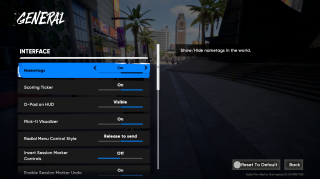
Interface
- Nametags can be turned On (default) or Off. When Off, other players’ nametags are hidden.
- Scoring Ticker can be turned On (default) or Off. When Off, the trick score display is hidden.
- Direction Button on HUD can be turned On (default) or Off. When Off, the D-Pad input guide is hidden.
- Flick-It Visualizer can be turned On (default) or Off. When Off, the right-stick Flick-It input display is hidden.
Camera
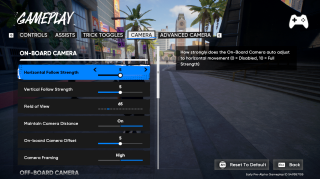
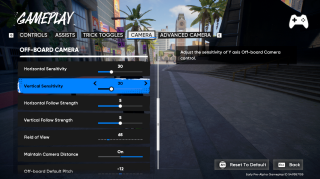
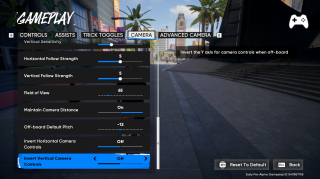
- Horizontal Follow Strength and Vertical Follow Strength can each be adjusted separately for On-board, Off-board, and Climbing cameras on a scale of 0–10 (default 5). These control how strongly the camera auto-adjusts to horizontal or vertical player movement.
- Field of View can be set for On-board and Off-board cameras on a scale of 50–120 (default 65).
- Maintain Camera Distance can be enabled (default) or disabled. When enabled, the camera remains the same distance from the player regardless of FOV settings.
- On-board Camera Offset ranges from 0–10 (default 5). Lower values center the skater avatar, while higher values position them further to the left of the screen.
- Camera Framing (On-board only) can be set to High (default) or Low. High aligns the camera to the avatar’s shoulders; Low aligns it to the hips.
- Horizontal Sensitivity and Vertical Sensitivity (Off-board only) can be adjusted independently on a scale of 0–100 (default 30) to control how responsive manual camera movement feels.
- Off-board Default Pitch ranges from -48 to 24 (default -12). Lower values tilt the camera downward from above; higher values tilt it upward from below.
- Invert Horizontal and Invert Vertical Camera Controls can be turned On or Off (default) independently, reversing camera movement directions when turned On.
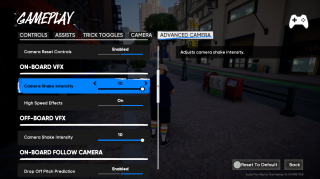
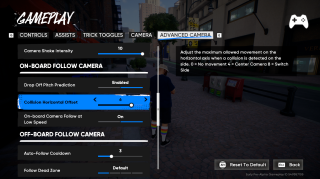
Advanced Camera
- Camera Shake Intensity can be adjusted from 0–10 (default 10) separately for On-board and Off-board cameras. This controls how strongly the camera shakes during gameplay.
- High Speed Effects (On-board only) can be turned On (default) or Off. When On, the camera applies visual effects to heighten the sense of speed.
- Collision Horizontal Offset (On-board only) can be adjusted from 0–10 (default 6). This controls how far the camera can shift horizontally when colliding with the environment.
Visual Comfort
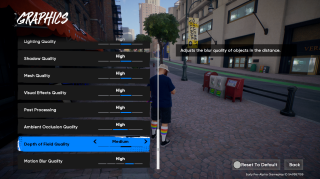
- Depth of Field Quality can be set to Medium (default) or Off. When set to medium distance objects will be blurred. Note: On PC Low and High options are also available.
- Motion Blur Quality can be set to High (default) or Off. When set to High motion blurring at high speeds will be enabled. Note: On PC Low, Medium, and Ultra settings are also available.
Audio
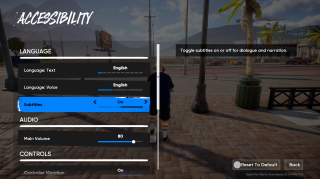
Subtitles
- Subtitles can be turned On (default) and Off, providing text for all dialogue in the game. Players can access this setting via the Accessibility menu available on the Initial Interactive Screen, or via the settings in pause menu whilst in-game.
Audio Customization
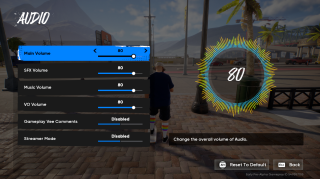
- Main Volume Slider is available on a slider between 0-100 (default: 80). Adjusting this applies to all sound in the game.
- SFX, Music, and VO Sliders are available on sliders between 0-100 (default: 80).
- Gameplay Vee Comments can be turned On (default) or Off. When turned Off, Vee will only talk during tutorials, explanations of gameplay mechanics, and challenges.
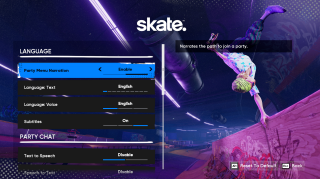
Menu Narration
- Party Menu Narration is turned on by default when first booting the game. This provides narration on some screens to allow players to join a party.
Party Chat Accessibility
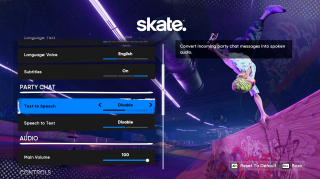
- Text to Speech can be set between Disable (default) and Enable. When enabled incoming text messages in the party chat will be synthesized into speech.
- Speech to Text can be set between Disable (default) and Enable. When enabled incoming voice messages will be transcribed into on screen text.
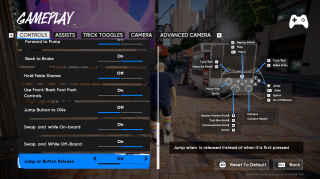
Controls
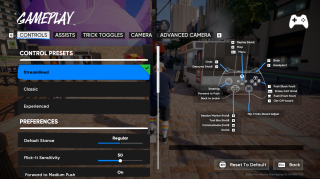
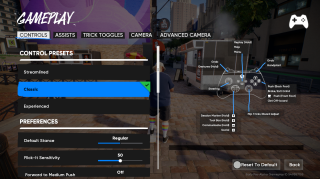
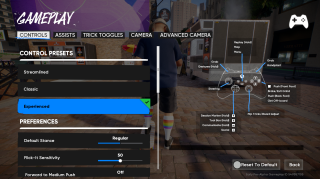
Control Presets
- Streamlined preset places forward and stopping controls onto the left stick, negating the need to use face buttons for moving forward or stopping.
- Classic controls leave the left stick for steering only.
- Experienced controls are identical to Classic controls except Push (Back Foot) and Push (Font Foot) buttons are reversed.
Control Preferences
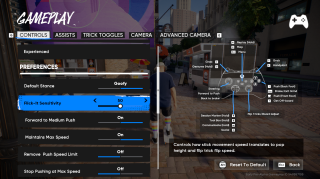
- Flick-It Sensitivity can be adjusted from 0–100 (default 50). This controls how responsive the right analog stick is when performing Flick-It gestures.
- Left Stick Forward to Medium Push can be turned On (default) or Off. When On, holding the left stick forward caps your push speed at medium.
- Left Stick Forward Max Speed can be turned On or Off (default). When On, holding the left stick forward allows the player to maintain maximum speed.
- Remove Left Stick Push Speed Limit can be turned On or Off (default). When On, there is no upper speed limit when pushing forward with the left stick.
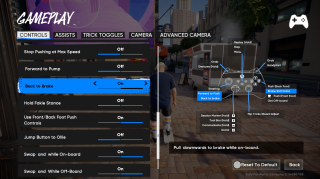
- Stop Pushing at Max Speed can be turned On or Off (default). When On, the avatar stops pushing once maximum speed is reached.
- Left Stick Forward to Pump can be turned On or Off (default). When On, the avatar crouches on curved surfaces to gain speed.
- Left Stick Back to Brake can be turned On or Off (On by default in Streamlined Controls). When On, pulling the left stick back acts as a brake input.
- Swap Square (X) and X (A) Buttons (On-board) can be turned On or Off (On by default in Streamlined and Classic Controls). When On, all on-board button mappings for these inputs are reversed.
- Swap Square (X) and X (A) Buttons (Off-board) can be turned On or Off (On by default in Streamlined and Classic Controls). When On, all off-board button mappings for these inputs are reversed.
- Jump Button on Release can be turned On or Off (default). When On, jumps trigger when the button is released instead of pressed.
Note: Keyboard navigation is supported on both PC and Console. This provides for partial menu navigation only. Additionally on PC mouse is supported for menu navigation. On both platforms only controller inputs can be used for gameplay.
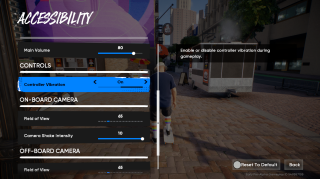
Controller Comfort
- Controller Vibration can be turned On (default) or Off. When turned Off, the controller will not convey information about collisions or rough surfaces via vibration.
Gameplay
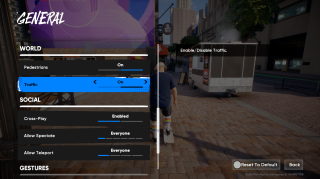
World Options
- Pedestrians can be turned On (default) or Off. When turned Off pedestrian avatars will not appear in the open world environment.
- Traffic can be turned On (default) or Off. When turned Off the vehicle traffic on San Vansterdam’s roads will not appear.
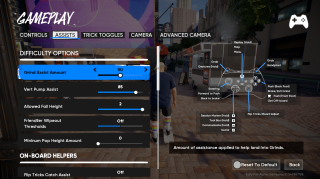
Difficulty Options
- Grind Assist Amount can be adjusted from 0–100 (default 50). Controls how much assistance is applied when locking into grinds.
- Vert Pump Assist can be adjusted from 0–100 (default 85). Determines how automated pumping is when transitioning on ramps or bowls. Higher values increase automation, but manual pumps remain more powerful.
- Allowed Fall Height can be adjusted from 0–2 (default 2). Higher values let players fall from greater heights without wiping out.
- Friendlier Wipeout Thresholds can be turned On or Off (default). When On, players are less likely to fall when colliding with small obstacles or walls.
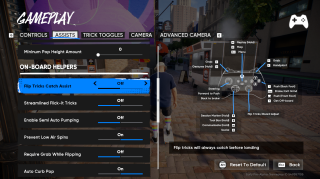
- Minimum Pop Height Amount can be adjusted from 0–50–100 (default 0). Higher values guarantee a greater minimum pop height. Note: This does not apply to Streamlined Flick-It gestures.
On-Board Helpers
- Flip Trick Catch Assist can be turned On or Off (default). When On, flip tricks are automatically caught before landing.
- Streamlined Flick-It Tricks can be turned On or Off (default On if the Streamlined controller preset is selected on first boot; otherwise Off). When On, Flick-It tricks require less precision—any upward or sideways flick of the right stick performs a basic flip trick at maximum height.
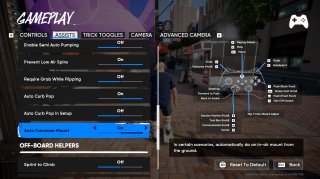
- Enable Semi-Auto Pumping can be turned On or Off (default). When On, pumping no longer requires precise timing to reach full power.
- Prevent Low Air Spins can be turned On (default) or Off. When On, spins near the ground are prevented to avoid accidental rotations.
- Require Grab While Flipping can be turned On or Off (default). When On, flip tricks can only be performed while grabbing the board.
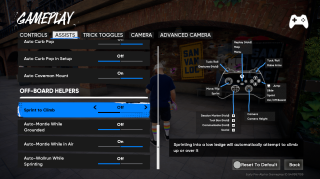
- Auto Curb Pop can be turned On (default) or Off. When not in trick setup, this automatically hops curbs without requiring a manual ollie.
- Auto Curb Pop in Setup can be turned On or Off (default). Functions the same as Auto Curb Pop but applies while in trick setup. Both options can be used together.
- Auto Caveman Mount can be turned On (default) or Off. When On, caveman-style mounts are triggered automatically in certain situations.
Off-Board Helpers
- Sprint to Climb can be turned On or Off (default). By default, players must jump or climb over low obstacles manually. When On, the player automatically attempts to climb or vault over low objects while sprinting toward them.
- Auto-Mantle While Grounded can be turned On or Off (default). By default, players must jump or climb up walls and higher ledges manually. When On, moving the left stick toward a wall or ledge automatically initiates a climb.
- Auto-Mantle While in Air can be turned On (default) or Off. When On, jumping toward a wall or ledge automatically triggers a grab and climb.
- Auto-Wallrun While Sprinting can be turned On or Off (default). When On, and depending on the approach angle, sprinting into a wall automatically initiates a wallrun.