
EA SPORTS FC™ 27
Accessibility Resources

Before you dive into EA SPORTS FC™ 27, we want to help you get started with accessibility. EA SPORTS FC™ 27 includes a range of accessibility features across modes including Ultimate Team, Career, Clubs, and the new The Grounds experience.
New this year, the Settings menu includes an Accessibility filter and icons highlighting settings that may be useful for different players. You can also customize Player Indicator colors for each member of your team, alongside new UI options available in The Grounds.Returning accessibility features include High Contrast Mode, Player and Stadium Shadows toggles, difficulty settings, gameplay assists, and more. If you’re new to EA SPORTS FC™, the Learn to Play mode also includes the Training Center, Skill Games, and Practice Arena.
When you first launch the game, you may be presented with accessibility options such as Subtitles, Color Blindness Filters, Brightness, Contrast, Menu Narration, Text to Speech, and Speech to Text. Available options may vary by language and region. All accessibility settings can be reviewed or adjusted at any time from the Settings menu.
Important Information: Please note that this information is based on the North American, English version for PC and consoles only. For more information about the game, patch notes, and news, visit the official website.
Noteworthy Features
Visual

NEW: Accessibility Settings Filter and Visual Icons
- NEW: Accessibility Filter can be used whilst in the settings menu to filter to only the most relevant Accessibility Settings, reducing the amount of time necessary to navigate to find them.
- NEW: Accessibility Icons appear next to settings that are relevant to particular users with Visual, Cognitive, Auditory, or Mobility related disabilities.
High Contrast Mode
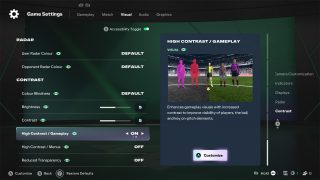
- High Contrast Mode can be turned On, or Off (default). When enabled, players can access numerous options to customize the appearance of the mode, these are listed below.
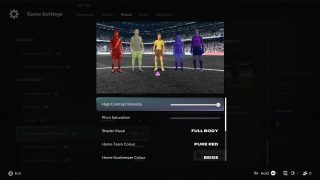
- High Contrast Mode - Pitch Saturation can be adjusted between 0 (default) and 1. When set to 0 the pitch will appear completely grayscale with no color. Note: It is not possible to adjust this setting from the pause menu. Players must have their desired pitch saturation selected before entering gameplay.
- High Contrast Mode - Shader Visual can be set to Cloth Only (default) or Full Body. When set to Cloth Only a high contrast shader will be applied to the kits of players. When set to Full Body a high contrast shader will be applied to the entire figure of players.
- High Contrast Mode - Home Team Color can be set between various colors.
- High Contrast Mode - Home Goalkeeper Color can be set between various colors.
- High Contrast Mode - Away Team Color can be set between various colors.
- High Contrast Mode - Away Goalkeeper Color can be set between various colors.
- High Contrast Mode - Ball Color can be set between various colors.
- High Contrast Mode - Referee Color can be set between various colors.
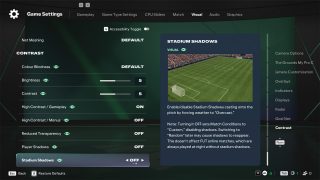
Shadows Toggle
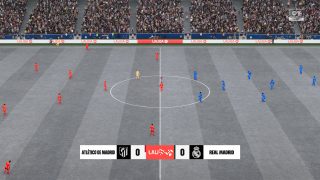
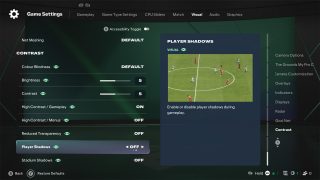
- Player Shadows can be turned On (default) or Off. When turned off the game removes shadows being cast by the players on the pitch.
- Stadium Shadows can be turned On (default) or Off. When turned off the game removes shadows being cast by the stadium or structures in and around the stadium on the pitch. Note 1: It is not possible to adjust this setting from the pause menu. Players must have their desired stadium shadow option selected before entering gameplay. Note 2: Turning On “Random” Match Conditions will automatically re-enable stadium shadows.
Gameplay
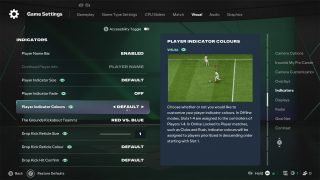
- Player Indicator Size can be set between Small, Default, and Large.
- Player Indicator Fade can be turned On (default) or Off. This setting will fade the player indicator as stamina is progressively lost.
- NEW: Player Indicator Colors can now be set between Default, or Custom. When Custom is selected players can enter a menu to select the color of the player indicator per team member.
- PlayStyles + Overhead Indicators can be turned On (default) or Off. When set to On Playstyles + information is provided over the heads of players.
- Clubs Player Indicators can be set to Default, Local Player & Teammates Only, or Local Player Only.
- Next Player Switch Indicator can be turned On (default) or Off. When set to On an indicator will appear above the head of the next player that will be switched to whilst defending.
- Corner Kick Trajectory can be turned On (default), or Off. When switched off, players will no longer see the visual line indicating the potential trajectory of the ball when taking a corner.
- Precision Pass and Shot Visuals can be turned On (default) or Off. These settings enable visual elements which provide assistance when passing and shooting.
- Score Clock and Score Clock Dropdown can be turned On (default) or Off. These settings enable the Score Clock and Score Clock Dropdown to be hidden during gameplay.
- Radar appearance can be set as 2D or 3D depending on user preference.
- User Radar Color enables players to change the color of the radar icons for their team.
- Opponent Radar Color enables players to change the color of the radar icons for the opposing team.
- Camera Shake Visuals can be set to On (default) or Off. Disabling this option removes camera shake associated with goal celebrations.
- POV Camera Scenes can be set to On (default) or Off. Disabling this option turns off first person POV scenes during Referee bookings, Set piece preparation, Goalscoring moments, and Goalkeeping saves.

NEW: The Grounds Gameplay
- NEW: The Grounds Kickabout Teammate Indicators can be set to None, or Red Vs. Blue (default). When turned on this applies a colored shader to players during Kickabouts in The Grounds game mode.
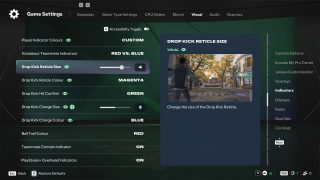
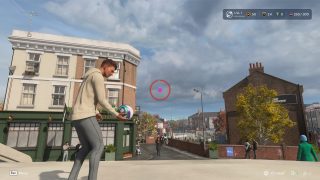
- NEW: Drop Kick Reticle Size can be set between 1 (default) and 5. Changing this increases and decreases the size of the aiming reticle in the centre of the screen during The Grounds game mode.
- NEW: Drop Kick Reticle Color can be changed between White (default), Red, Blue, Green, or Magenta.
- NEW: Drop Kick Hit Confirm Color can be changed between White (default), Red, Blue, Green, or Magenta.
- NEW: Drop Kick Hit Charge Size can be set between 1 (default) and 5. Changing this increases and decreases the size of the charging animation on screen when kicking a ball in The Grounds game mode.
- NEW: Drop Kick Charge Color can be changed between White (default), Red, Blue, Green, or Magenta.
- NEW: Ball Trail Color can be changed between White (default), Red, Blue, Green, or Magenta.
User Interface
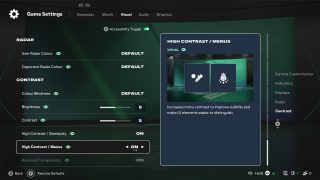
- NEW: High Contrast Menus can be set between Off (default) and On, providing opaque menu tiles on certain screens instead of translucent tiles.
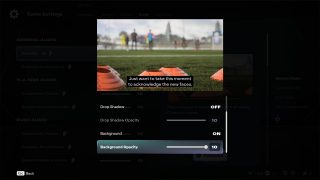
- Subtitles can be turned On and Off (default), providing text for dialogue in the career mode Cinematic scenes.
- Subtitles Text Size can be set between Extra Small, Small, Default, Large, or Extra Large.
- Subtitles Text Color can be set between White (default), Lavender, Orange, Cyan, and Yellow.
- Subtitles Drop Shadow can be set between Off (default), and On. When enabled subtitles in Career mode cinematics will appear with a shadow behind the text.
- Subtitles Background can be set between Off (default), and On. When enabled subtitles in Career mode cinematics will appear within a dark container.
- Main Menu Video can be set between Off, and On (default). When disabled this replaces the main menu background video with static images that play in a slide show rather than a continuous video.
Camera Settings
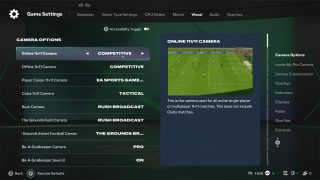
- Offline 11v11 Camera can be set to Competitive (default), Tactical, EA Sports GameCam, Tele Broadcast, Tele, Co-Op, Classic, Dynamic, End to End, Pro, Broadcast, and Legacy. Each camera angle changes the available field of view and the dynamism of the camera.
- Online 11v11 Camera can be set to Competitive (default), Tactical, EA Sports GameCam, Tele Broadcast, Tele, Co-Op, Classic, Dynamic, End to End, Pro, Broadcast, and Legacy. Each camera angle changes the available field of view and the dynamism of the camera.
- Player Career 11v11 Camera can be set to Competitive (default), Competitive Focus, Tele Broadcast, Tele, Co-Op, Classic, Dynamic, End to End, Pro, Broadcast, Legacy, EA Sports GameCam, Tactical Focus, and Tactical. Each camera angle changes the available field of view and the dynamism of the camera.
- Clubs 11v11 Camera can be set to Competitive (default), Competitive Focus, EA Sports GameCam, Tele Broadcast, Tele, Co-Op, Classic, Dynamic, End to End, Pro, Broadcast, Legacy, Tactical Focus, and Tactical. Each camera angle changes the available field of view and the dynamism of the camera.
- Rush Camera can be set to Rush Broadcast (default), Rush Tactical, Rush Pro, and Rush End to End. Each camera angle changes the available field of view and the dynamism of the camera.
- NEW: The Grounds Rush Camera can be set to The Grounds Pro Camera (default), Rush Tactical, Rush Broadcast. Each camera angle changes the available field of view and the dynamism of the camera.
- NEW: The Grounds Street Football Camera can be set to The Grounds Pro Camera (default), or The Grounds Broadcast Camera. Each camera angle changes the available field of view and the dynamism of the camera.
- Be A Keeper Camera can be set to Pro (default), Tele, Co-Op, Classic, Dynamic, End to End, Broadcast, Legacy, Tactical, EA Sports GameCam, and Tele Broadcast. Each camera angle changes the available field of view and the dynamism of the camera.
- Power Shot Zoom can be set to On (default), or Off. When enabled the game will apply dynamic camera movement when players make Power Shots.
NEW: The Grounds My Pro Camera
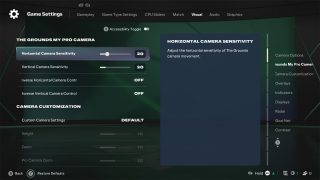
- NEW: Horizontal Camera Sensitivity can be adjusted on a scale of 0 to 100 (default: 20). This option allows players to adjust the sensitivity of camera movement along the horizontal axis.
- NEW: Vertical Camera Sensitivity can be adjusted on a scale of 0 to 100 (default: 20). This option allows players to adjust the sensitivity of camera movement along the vertical axis.
- NEW: Inverse Horizontal Camera Control can be turned Off (default) or On. This option allows players to choose to invert the horizontal camera movement input.
- NEW: Inverse Vertical Camera Control can be turned Off (default) or On. This option allows players to choose to invert the vertical camera movement input.
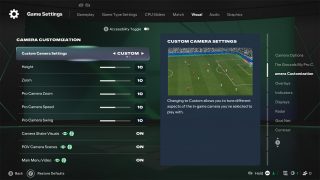
Custom Camera Settings
- Height can be set between 0 and 20 (default 10). This setting adjusts the height of the camera. Does not apply to Pro camera view.
- Zoom can be set between 0 and 20 (default 10). This setting adjusts the level of zoom of the camera. Does not apply to Pro camera view.
- Pro Camera Zoom can be set between 0 and 20 (default 10). This setting adjusts the zoom of the Pro camera view only.
- Pro Camera Speed can be set between 0 and 20 (default 10). This setting adjusts the speed of the Pro camera view only.
- Pro Camera Swing can be set between 0 and 20 (default 10). This setting adjusts the swing of the Pro camera view only.
Display Settings
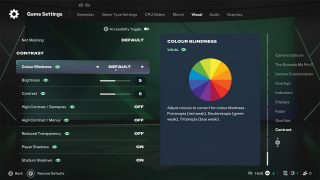
- Colorblindness profiles can be set between Default, Protanopia, Deuteranopia, and Tritanopia. Intensity can be adjusted between 0 and 10 (default 6). When enabled a full screen filter is applied which changes the hue of the screen to provide color compensation.
- Brightness and Contrast can be adjusted on scales of 0 to 10 (default 5).
Communication
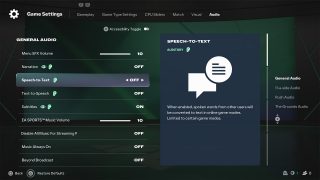
- Text-To-Speech and Speech-To-Text are available (North America only) and can be turned on during the first time boot flow or from the accessibility settings menu. FC provides a VoIP communication system, and when enabled, these settings allow the player who has enabled them to send messages as text which are then synthesized into speech to participate in VOIP, as well as to receive VOIP audio messages transcribed as text.
Audio
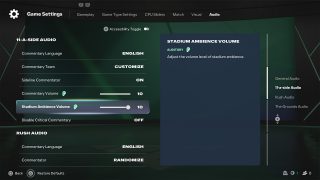
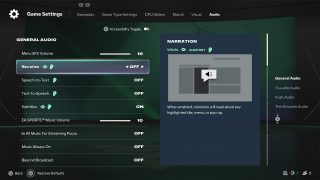
Audio Settings and Narration
- Volume sliders can be separately adjusted for Menu SFX, EA Music, Controller Audio (PlayStation 5 only).
- 11-A-Side Audio additionally provides mode-specific volume sliders for Commentary and Stadium Ambiance.
- Rush Audio additionally provides mode-specific volume sliders for Commentary, Gameplay Music, and General Ambiance.
- Menu Narration is available (North America, English-Only) and can be turned Off (default), or On. It is available in the accessibility menu which appears at the beginning of the bootflow, or from the Accessibility Menu in-game. When enabled it will read certain parts of the UI such as text in the highlighted tile, and menu items.
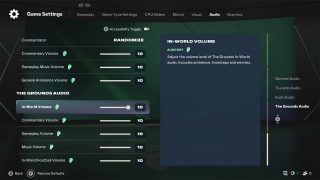
The Grounds Audio
- NEW: In-World Volume can be set between 0 and 10 (default), and adjusts the sound of in-world audio such as foot steps, emotes, and ambient sounds.
- NEW: Commentary Volume can be set between 0 and 10 (default), and adjusts the volume of match commentary in The Grounds game mode.
- NEW: Gameplay Volume can be set between 0 and 10 (default), and adjusts the volume of sound effects during matches in The Grounds.
- NEW: Music Volume can be set between 0 and 10 (default), and adjusts the volume of music that plays in the Grounds game mode.
- NEW: In-World Football Volume can be set between 0 and 10 (default), and adjusts the volume of sound effects relating to football played during The Grounds open world experience.
Controls
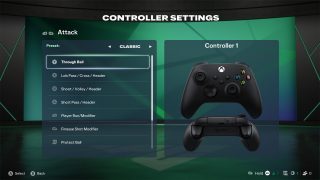
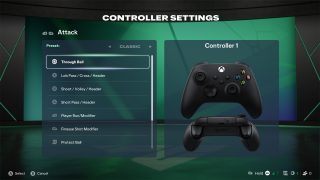
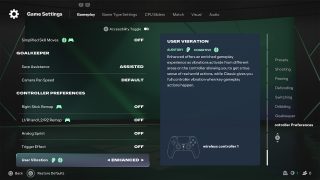
Controller Customization Settings
- NOTE: Competitive Online games cannot be played using simplified One or Two Button Layouts.
- Controller Layouts are available in the Customize Controls menu. Players can choose between Classic (default), Alternate, Two Button, and One Button controls schemes. One and Two button schemes are simplified schemes that automate some actions.
- Gameplay Input Remapping is available for some inputs when using Classic and Alternate Controls. Actions mapped to face buttons can be interchanged with other face buttons, actions mapped to the shoulder buttons and triggers can be interchanged with one another, and the move action mapped to the left stick can be interchanged with the tactics and mentality inputs on the d-pad.
- Menu Navigation Remapping is available for limited inputs. Players can choose between left and right stick to navigate through menu options. Additionally players can choose between shoulder buttons and triggers for navigating through menus.
- Analog Sprint can be turned On or Off (default). When enabled this feature uses the amount of force being applied to the right trigger, to increase or decrease the speed of the sprint.
- Trigger Effect (PC and PlayStation 5 Only) can be turned On or Off (default). When enabled this feature applies resistance to the trigger inputs.
- User Vibration Feedback (PC and PlayStation 5 Only) can be set to Enhanced (default), Intense, Off, and Classic. Classic and Intense settings vibrate the whole controller, the Enhanced setting specifies areas of the controller to vibrate, and the Off setting completely disables vibration.
Mouse and Keyboard Customization Settings
- NOTE: Competitive Online games cannot be played using Mouse + Keyboard, they also cannot be played using simplified Two Button Layouts.
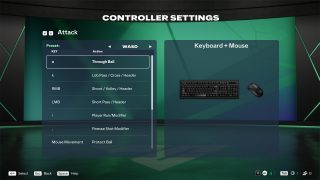
- Mouse + Keyboard and Keyboard Layouts are available in the Customize Controls menu. Players can choose between Classic (default), Alternate, and Two Button controls schemes. The Two button scheme is a simplified scheme that automates some actions.
- Gameplay Input Remapping is available for some inputs when using Classic and Alternate Controls. Actions mapped to keyboard buttons can be interchanged with other keyboard buttons. Mouse movement and button inputs cannot be remapped.
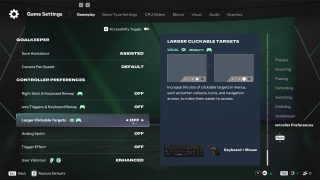
- On Screen UI Adjustments for Mouse and Keyboard users are available in the form of a Larger Clickable Targets option, which increases the size of on screen UI elements which are interactable with mouse cursors. Additionally, the On-Screen Pause in Gameplay options allows player to pause the game using a mouse cursor during a match.

Gameplay

Gameplay Type Presets
- Authentic Preset maintains or returns the gameplay assists (listed in the next sections) to the default setup they have when starting the game.
- Competitive Preset applies the settings that are mandatory for all players in online multiplayer modes, to offline play too.
- Custom Preset allows players to adjust user and CPU sliders for: Player Speed, Shooting, Passing, Injuries, Goal Keeping, Team Positioning, Ball Control, and Defending, to create a customized experience.
Shooting Assists
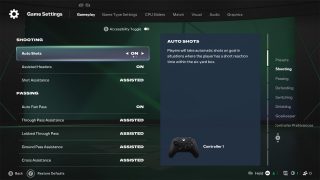
- Auto Shots can be toggled On (default), and Off. When this setting is enabled players will take automatic shots on goal in situations where the player has a short reaction time within the six-yard box.
- Assisted Headers can be toggled On (default), and Off. When this setting is enabled the game will decide when to smooth out the gameplay experience by choosing to pass with a header.
- Shot Assistance can be selected between Assisted (default), Manual, and Precision. These settings apply to the level of assist for aiming at the goal. Assisted provides assistance to ensure the player always aims at the goal, Manual requires the player to point in the correct direction, and Precision provides partial assistance to help aim at the goal.
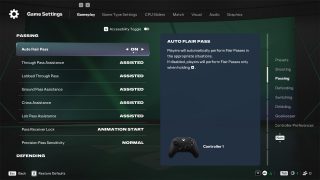
Passing Assists
- Auto Flair Pass can be toggled On (default), and Off. When set to on players will automatically perform flair passes in appropriate situations. When turned off players will have to trigger the flair pass using the left trigger or appropriate mouse/keyboard button.
- Through Pass Assistance can be selected between Assisted (default), Manual, and Semi. The range of options will decide how much assistance is provided to automate through passes in appropriate situations.
- Lobbed Through Pass can be selected between Assisted (default), Manual, and Semi. The range of options will decide how much assistance is provided to automate lobbed through passes in appropriate situations.
- Ground Pass Assistance can be selected between Assisted (default), Manual, and Semi. The range of options will decide how much assistance is provided to automate ground passes in appropriate situations.
- Cross Assistance can be selected between Assisted (default), Manual, and Semi. The range of options will decide how much assistance is provided to automate crosses in appropriate situations.
- Lob Pass Assistance can be selected between Assisted (default), Manual, and Semi. The range of options will decide how much assistance is provided to automate lob passes in appropriate situations.
- Pass Receiver Lock can be selected between Late (default), Animation Start, and Power Up. When set to Late the player receiving the pass is locked as late as possible, when set to Animation Start the player receiving the pass is locked when the pass animation starts, and when set to Power Up the player receiving the pass is locked as soon as the pass button is pressed.
- Precision Pass Sensitivity can be set as Normal (default), and High. When set to high sensitivity this will reduce the assistance provided and make the aim of the ball more reactive to the precise movement of the left stick or mouse.
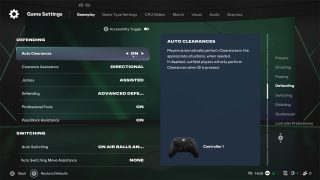
Defending Assists
- Auto Clearances can be toggled On (default), and Off. When set to On players will automatically perform Clearances in appropriate situations.
- Clearance Assistance can be selected between Directional (default), and Classic. When set to Directional power, the earliest possible contact point will be selected automatically, but with the directional input the player makes being taken into consideration. When set to Classic, direction will be automated alongside power and the earlier possible contact point.
- Jockey can be selected between Assisted (default), and Manual. When set to Assisted player speed will be adjusted automatically to help players remain close to opponents. When set to Manual, players are responsible for maintaining their position close to opponents.
- Defending can be selected between Advanced Defending (default), Tactical Defending, and Legacy Defending. When set to Advanced Defending, players can choose the tackle type by using different button inputs. When set to Tactical Defending, the game will contextually choose the tackle type for you. When set to Legacy Defending (not available if using the Competitive preset), the tackle will be handled automatically at the press of a button.
- Professional Fouls can be toggled On (default), and Off. When toggled off, players can’t initiate a professional foul within the designated input.
- Pass Block Assistance can be toggled On (default), and Off. When set to On AI and User controlled players will attempt to intercept passes automatically. When set to Off players must trigger interceptions manually.
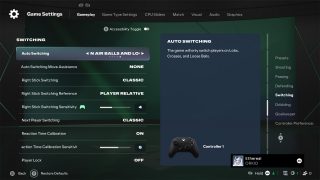
Switching Assists
- Auto Switching can be set between On Air Balls and Loose Balls (default), Manual, Only on Air Balls, Automatic, and Only on Loose Balls. These options adjust when the game will automatically switch players.
- Auto Switching Move Assistance can be set to None (default), Low, and High. When enabled, depending on the level, the player switched to will continue moving in their current direction for a period of time enabling you to orient yourself to their movement.
- Right Stick Switching can be set to Classic (default), Player Rotation, and Adaptive. This setting adjusts the behavior of the right stick when playing on the controller. When set to Classic, flicking the right stick will switch to the next nearest player in the direction of the flick. When set to Player Rotation the next player switch indicator will move to the next nearest player, but the switch won’t take place until the left shoulder button is used. When set to Adaptive, the switch will depend on how long the right stick is held for, holding it further will switch to a player further away in the direction the stick is being held.
- Right Stick Switching Reference can be set as Player Relative (default), and Ball Relative. When set to Player Relative, the player currently being controlled acts as the reference point for the right stick switching behavior. When set to Ball Relative, the ball acts as the reference point.
- Right Stick Switching Sensitivity can be set on a scale between 0 and 10 (default is 4). The higher the number selected, the more the game will respect the decision of which direction and how long the stick is held for.
- Next Player Switching can be set between Classic (default), Goal Side, and Closest to Ball. When playing on the controller this setting adjusts the behavior of the left shoulder button when switching players. When set to Classic the next player is selected by the title as being in the most favorable position based on a variety of factors. When set to Goal Side the setting favors players on the goal side of the ball. When set to Closest to Ball the setting favors players closest to the ball.
- Reaction Time Calibration can be set to On (default) and Off. When turned on, this allows players to ensure the game takes into account the possible delay between deciding to switch players, and pressing the button to do so, by ignoring the currently recommended player and switching to the one before.
- Reaction Time Calibration Sensitivity can be set on a scale between 0 and 10 (default is 6). When the Reaction Time Modifier is turned on, this setting adjusts how long the delay should be before the game switches to the current recommended player. A higher number increases the delay.
- Player Lock can be set to On and Off (default). When using a controller this setting gives players the ability to press both analog sticks to lock themselves to the currently selected player, regardless of any automated switching behaviors.
Dribbling Assist
- Simplified Skill Moves can be turned Off (default), or On. When enabled, the game will automatically perform a contextually appropriate Skill Move when players move the right stick in any of the four main directions on controllers (Up, Down, Left, Right).
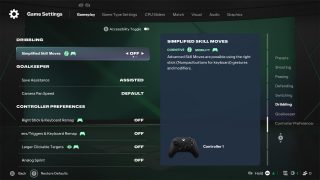
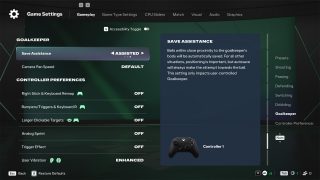
Goalkeeper Assists
- Save Assistance can be set as Assisted (default), Semi, or Manual. When set as Semi, balls that travel within close proximity to the player’s body, will be automatically saved, for all other situations the players position and timing will influence whether a shot is saved. When set as Assisted, balls that pass within close proximity to the player’s body will be automatically saved, for all other situations, the game will automatically attempt a save, but positioning will still play a role in the outcome. When set to Manual, only reflex saves will be automatic, players must account for all other situations.
- Camera Pan Speed can be set to Default, Slow, or Fast. This setting alters the speed of panning when using the Pro camera.