
NHL 20
for PS4
Accessibility Resources

GAMEPLAY SLIDERS
GENERAL

Game Player Version
Select to choose the version of the game you would like to use during gameplay. This option includes Latest and V 1.00. It is recommended that your uses the LATEST version.
Game Style
Select to change the overall feel of the game. Arcade is faster paced and more extreme. Full Sim is the most realistic setting. You can also choose Custom to create your own game style. This setting has a range value of 1 to 4.
Attribute Effects
Adjust the effects attributes will have on your players. This option has a value range of 0 to 10.
Broken Stick Frequency
Adjust to determine how often sticks will break during gameplay. This option has a value range of 0 to 100.
Game Speed
Adjust the speed of the play and players in a game. This option has a value range of 0 to 6.
Fatigue Effect - CPU
Adjust the effect that being tired has on a player performance. This option has a value range of 0 to 100.
Fatigue Effect - Human
Adjust the effect that being tired has on a player performance. This option has a value range of 0 to 100.
Fatigue Recovery - CPU
Adjust the speed that players will recover from being tired. This option has a value range of 0 to 100.
Fatigue Recovery - Human
Adjust the speed that players will recover from being tired. This option has a value range of 0 to 100.
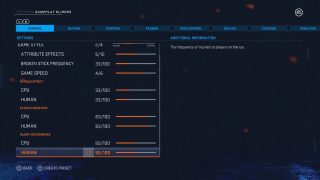
Injury Occurrence - CPU
Adjust the frequency of injuries to players on the ice. This option includes a range value of 0 to 100.
Injury Occurrence - Human
Adjust the frequency of injuries to players on the ice. This option includes a range value of 0 to 100.
SKATING

Game Style
Select to change the overall feel of the game. Arcade is faster paced and more extreme. Full Sim is the most realistic setting. You can also choose Custom to create your own game style. This setting has a range value of 1 to 4.
Back Skating
Adjust the speed a player looses when back skating. The lower the value, the slower players skate backwards compared to how fast they skate forwards. This option has a range value of 0 to 100.
Hustle Type
Adjust how much hustle increases a player’s top speed. This option allows to select the type you want to use and includes Authentic Hustle or Classic Speed Burst.
Puck Carrier Agility
Adjust how much agility a player loses when carrying the puck. The lower the value, the greater the effect skating with the puck has on a players agility. This option has a value range of 0 to 100.
Puck Carrier Skating
Adjust how much speed a player loses when carrying the puck. The lower the value, the slower players will be with the puck compared to without it. This option has a value range of 0 to 100.
Player Acceleration - CPU
Adjust player acceleration with and without the puck. This option has a value range of 0 to 100.
Player Acceleration - Human
Adjust player acceleration with and without the puck. This option has a value range of 0 to 100.
Skating Speed - CPU
Adjust how high a top-end speed player can reach. This option has a value range of 0 to 100.
Skating Speed - Human
Adjust how high a top-end speed player can reach. This option has a value range of 0 to 100.

Skating Agility - CPU
Adjust how easily a player can turn when skating. The lower the value, the lower players’ agility will be with the puck compared to without it. This option has a range value of 0 to 100.
Skating Agility - Human
Adjust how easily a player can turn when skating. The lower the value, the lower players’ agility will be with the puck compared to without it. This option has a range value of 0 to 100.
SHOOTING

Game Style
Select to change the overall feel of the game. Arcade is faster paced and more extreme. Full Sim is the most realistic setting. You can also choose Custom to create your own game style. This setting has a range value of 1 to 4.
One Time Accuracy - CPU
Adjust the accuracy of a shot taken from a one timer. This option has a value rage of 0 to 100.
One Time Accuracy - Human
Adjust the accuracy of a shot taken from a one timer. This option has a value rage of 0 to 100.
Shot Accuracy - CPU
Adjust the accuracy with which you will hit the selected target. This option has value range of 0 to 100.
Shot Accuracy - Human
Adjust the accuracy with which you will hit the selected target. This option has value range of 0 to 100.

Shot Power - CPU
Adjust the amount of power used when shooting the puck. This option has value range of 0 to 100.
Shot Power - Human
Adjust the amount of power used when shooting the puck. This option has value range of 0 to 100.
Slap Shot Accuracy - CPU
Adjust the accuracy level when taking a slap shot. This option has a range of 0 to 100.
Slap Shot Accuracy - Human
Adjust the accuracy level when taking a slap shot. This option has a range of 0 to 100.
PASSING
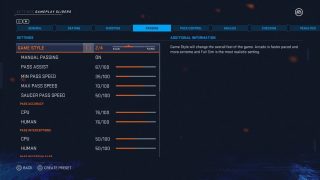
Game Style
Select to change the overall feel of the game. Arcade is faster paced and more extreme. Full Sim is the most realistic setting. You can also choose Custom to create your own game style. This setting has a range value of 1 to 4.
Manual Passing
Select ON/OFF. When selected the power of the pass is controlled by how long you hold the button on the controller.
Pass Assist
Adjust to show how accurately you need to aim at a pass receiver to get an assisted pass. With the slider at the lowest value there is no assistance at all. This option has a value range of 0 to 100.
Min. Pass Speed
Adjust to set a minimum speed a passed puck will travel when no powered up. This option has a value rang of 0 to 100.
Max Pass Speed
Adjust to set a minimum speed a passed puck will travel when no powered up. This option has a value range of 0 to 100.
Saucer Pass Speed
Adjust the speed of saucer passes in game. This option has a value range of 0 to 100.
Pass Accuracy - CPU
Adjust how game circumstances and attributes of the player influence a successful pass. This option has a value range of 0 to 100.
Pass Accuracy - Human
Adjust how game circumstances and attributes of the player influence a successful pass. This option has a value range of 0 to 100.
Pass Interceptions - CPU
Adjust the likelihood that a player will intercept a nearby pass. This option has a value range of 0 to 100.
Pass Interceptions - Human
Adjust the likelihood that a player will intercept a nearby pass. This option has a value range of 0 to 100.
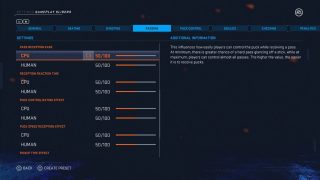
Pass Reception Ease - CPU
Adjust to influence how easily players can control the puck while receiving a pass. At minimum, there is greater chance of a hard pass glancing off a stick, while at maximum, the player can control almost all passes. The higher the value, the easier it is to receive pucks. This option has a value range of 0 to 100.
Pass Reception Ease - Human
Adjust to influence how easily players can control the puck while receiving a pass. At minimum, there is greater chance of a hard pass glancing off a stick, while at maximum, the player can control almost all passes. The higher the value, the easier it is to receive pucks. This option has a value range of 0 to 100.
Reception Reaction Time - CPU
Adjust how much reaction time effects a player’s ability to pick up the puck. The higher the value, the harder it will be for a player to acquire the puck when they don’t have enough time to react. This option has a value range of 0 to 100.
Reception Reaction Time - Human
Adjust how much reaction time effects a player’s ability to pick up the puck. The higher the value, the harder it will be for a player to acquire the puck when they don’t have enough time to react. This option has a value range of 0 to 100.
Puck Control Rating Effect - CPU
Adjust how much the Puck Control rating has an effect on picking the puck up. The higher the value, the Puck Control rating will have a greater influence on the ability to acquire the puck. This option has a value range of 0 to 100.
Puck Control Rating Effect - Human
Adjust how much the Puck Control rating has an effect on picking the puck up. The higher the value, the Puck Control rating will have a greater influence on the ability to acquire the puck. This option has a value range of 0 to 100.
Pick Up Type Effect - CPU
Adjust the way you are picking up the puck and how it affects your ability to pick up the puck. The higher the value, the greater the effect on how the player is picking up the puck will have on the acquiring the puck cleanly. This option has a value range of 0 to 100.
Pick Up Type Effect - Human
Adjust the way you are picking up the puck and how it affects your ability to pick up the puck. The higher the value, the greater the effect on how the player is picking up the puck will have on the acquiring the puck cleanly. This option has a value range of 0 to 100.
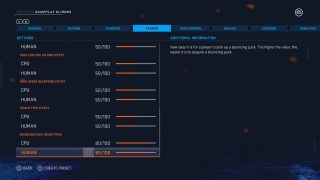
Bouncing Puck Receptions - CPU
Adjust how easy it is for a player to pick up a bouncing puck. The higher the value, the easier it is to acquire a bouncing puck. This option has a value range of 0 to 100.
Bouncing Puck Receptions - Human
Adjust how easy it is for a player to pick up a bouncing puck. The higher the value, the easier it is to acquire a bouncing puck. This option has a value range of 0 to 100.
PUCK CONTROL

Game Style
Select to change the overall feel of the game. Arcade is faster paced and more extreme. Full Sim is the most realistic setting. You can also choose Custom to create your own game style. This setting has a range value of 1 to 4.
Incidental Contact Puck Loss
Adjust to control when the puck carrier will lose possession of the puck due to contact with part of an opposing player. This option includes Legs and Body only, Stick, Legs and Body, and None.
Incidental Stick Contact Immunity
Adjust to control the time before incidental contact to puck carriers stick from another stick or body that will cause the puck to come loose. The night the value, the longer a player has after acquiring the puck before incidental contact with their stick can knock the puck loose. This option has a value range of 0 to 100.
Puck Control - CPU
Adjust to make it easier for a player to lose possession of the puck when you check him. The higher the value, the more control players will have with the puck. This option has a value range of 0 to 100.
Puck Control - Human
Adjust to make it easier for a player to lose possession of the puck when you check him. The higher the value, the more control players will have with the puck. This option has a value range of 0 to 100.
Decking Impact - CPU
Adjust how likely deking is to make you lose the puck. The higher the value, the easier it will be to lose the puck when deking. This option has a value range of 0 to 100.
Decking Impact - Human
Adjust how likely deking is to make you lose the puck. The higher the value, the easier it will be to lose the puck when deking. This option has a value range of 0 to 100.

Spin Deke Impact - CPU
Adjust how likely performing a spin deke is to make you lose the puck. The higher the value, the easier it will be to lose the puck when spinning. This option has a value range of 0 to 100.
Spin Deke Impact - Human
Adjust how likely performing a spin deke is to make you lose the puck. The higher the value, the easier it will be to lose the puck when spinning. This option has a value range of 0 to 100.
Skating Impact - CPU
Adjust how likely skating is to make you lose the puck. The higher the value, the easier it will be to lose the puck when turning sharp, pivoting, etc. This option has a value range of 0 to 100.
Skating Impact - Human
Adjust how likely skating is to make you lose the puck. The higher the value, the easier it will be to lose the puck when turning sharp, pivoting, etc. This option has a value range of 0 to 100.
GOALIES

Game Style
Select to change the overall feel of the game. Arcade is faster paced and more extreme. Full Sim is the most realistic setting. You can also choose Custom to create your own game style. This setting has a range value of 1 to 4.
Goalie Cover Frequency
Adjust the frequency that a goalie will cover up the puck. This has a value range of 0 to 100.
Goalie Passing
Adjust the speed and frequency with which the goalie will pass the puck. This has a value range of 0 to 100.
Goalie Cross Crease Reaction Time - CPU
Adjust how fast the goalie will be able to react when moving across the crease. The higher the value, the quicker the goalie will react to passes going across the crease. This option has a value range of 0 to 100.
Goalie Cross Crease Reaction Time - Human
Adjust how fast the goalie will be able to react when moving across the crease. The higher the value, the quicker the goalie will react to passes going across the crease. This option has a value range of 0 to 100.

Goalie Save Reaction Time - CPU
Adjust how fast the goalie will react to make a save. The higher the value, the quicker the goalie will react to making a save. This option has a value range of 0 to 100.
Goalie Save Reaction Time - Human
Adjust how fast the goalie will react to make a save. The higher the value, the quicker the goalie will react to making a save. This option has a value range of 0 to 100.
Goalie Deflection Reaction Time - CPU
Adjust how fast the goalie will react to a deflection. The higher the value, the quicker a goalie will react to deflections. This option has a value range of 0 to 100.
Goalie Deflection Reaction Time - Human
Adjust how fast the goalie will react to a deflection. The higher the value, the quicker a goalie will react to deflections. This option has a value range of 0 to 100.
Goalie Screen Effect - CPU
Adjust how much screening players affect the goalie’s ability to see a shot and react to it. The higher the value, the greater the effect a screen has on a goalie. This option has a value range of 0 to 100.
Goalie Screen Effect - Human
Adjust how much screening players affect the goalie’s ability to see a shot and react to it. The higher the value, the greater the effect a screen has on a goalie. This option has a value range of 0 to 100.
Goalie Screen Persistence - CPU
Adjust how long it takes a goalie to find the puck when a screen is removed. The higher the value, the longer a goalie is affected by a screen. This option has a value range of 0 to 100.
Goalie Screen Persistence - Human
Adjust how long it takes a goalie to find the puck when a screen is removed. The higher the value, the longer a goalie is affected by a screen. This option has a value range of 0 to 100.
CHECKING
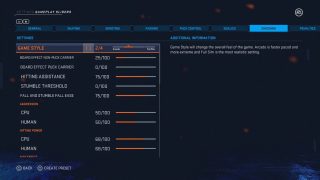
Game Style
Select to change the overall feel of the game. Arcade is faster paced and more extreme. Full Sim is the most realistic setting. You can also choose Custom to create your own game style. This setting has a range value of 1 to 4.
Board Effect Non-Puck Carrier
Adjust how likely the non-puck carrier will stumble when interacting with the boards. This option has a value range of 0 to 100.
Board Effect Puck Carrier
Adjust how likely the puck carrier will stumble when interacting with the boards. This option has a value range of 0 to 100.
Hitting Assistance
Adjust how easy or difficult it is to hit an opponent’s player. This option has a value range of 0 to 100.
Stumble Threshold
Adjust the amount a player will stumble. This option has a value range of 0 to 100.
Fall and Stumble Fall Ease
Adjust the amount a player will fall and stumble fall. A higher value will result in more falls and stumble falls. This option has a value range of 0 to 100.
Aggression - CPU
Adjust the aggressiveness of players in game. This option has a value range of 0 to 100.
Aggression - Human
Adjust the aggressiveness of players in game. This option has a value range of 0 to 100.
Hitting Power - CPU
Adjust the power a player has when hitting another player on the ice. This option has a value range of 0 to 100.
Hitting Power - Human
Adjust the power a player has when hitting another player on the ice. This option has a value range of 0 to 100.
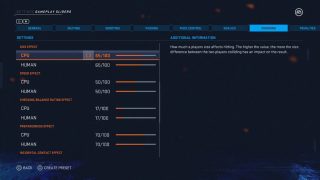
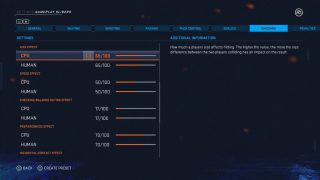
Size Effect - CPU
Adjust how a player’s size affects hitting. The higher the value, the more the size difference between the two players colliding has an impact on the result. This option has a value range of 0 to 100.
Size Effect - Human
Adjust how a player’s size affects hitting. The higher the value, the more the size difference between the two players colliding has an impact on the result. This option has a value range of 0 to 100.
Speed Effect - CPU
Adjust how much speed affects hitting. The higher the value, the more speed has an impact on the result of the collision. This option has a value range of 0 to 100.
Speed Effect - Human
Adjust how much speed affects hitting. The higher the value, the more speed has an impact on the result of the collision. This option has a value range of 0 to 100.
Checking/Balance Rating Effect - CPU
Adjust how much the Checking rating and Balance rating affect hitting. The higher the value, the more the ratings of the players involved has an impact on the result of the collision. This option has a value range of 0 to 100.
Checking/Balance Rating Effect - Human
Adjust how much the Checking rating and Balance rating affect hitting. The higher the value, the more the ratings of the players involved has an impact on the result of the collision. This option has a value range of 0 to 100.
Preparedness Effect - CPU
Adjust how much a hit affects a player when they are unprepared for the collision. The higher the value, the more a hit will have an impact on a plyer who isn’t prepared. This option has a value range of 0 to 100.
Preparedness Effect - Human
Adjust how much a hit affects a player when they are unprepared for the collision. The higher the value, the more a hit will have an impact on a plyer who isn’t prepared. This option has a value range of 0 to 100.
Incidental Contact Effect - CPU
Adjust how often incidental contact of opposing players and teammates can cause a player to stumble or fall. The higher the value, the easier it is for incidental contact to stumble or fall. This option has a value range of 0 to 100.
Incidental Contact Effect - Human
Adjust how often incidental contact of opposing players and teammates can cause a player to stumble or fall. The higher the value, the easier it is for incidental contact to stumble or fall. This option has a value range of 0 to 100.
Poke Checking Accuracy - CPU
Adjust how accurate a player will be at poke checking. This option has a value range of 0 to 100.
Poke Checking Accuracy - Human
Adjust how accurate a player will be at poke checking. This option has a value range of 0 to 100.
Stick Lift Effectiveness - CPU
Adjust how much power a poke check will knock the puck off the puck carrier. This option has a value range of 0 to 100.
Stick Lift Effectiveness - Human
Adjust how much power a poke check will knock the puck off the puck carrier. This option has a value range of 0 to 100.
PENALTIES

Game Style
Select to change the overall feel of the game. Arcade is faster paced and more extreme. Full Sim is the most realistic setting. You can also choose Custom to create your own game style. This setting has a range value of 1 to 4.
CPU Penalties
Adjust how many penalties the CPU will take when in game. This option has a value range of 0 to 100.
CPU Teammate Penalties
Adjust how many penalties your CPU teammates will take in game. This option has a value range of 0 to 100.
Tripping - CPU
Adjust the frequency of a tripping penalty will be called in a game. This option has a value range of 0 to 100.
Tripping - Human
Adjust the frequency of a tripping penalty will be called in a game. This option has a value range of 0 to 100.
Slashing - CPU
Adjust how often a slashing penalty will be called in a game. This option has a value range of 0 to 100.
Slashing - Human
Adjust how often a slashing penalty will be called in a game. This option has a value range of 0 to 100.
Elbowing - CPU
Adjust how often an elbowing penalty will be called in a game. This option has a value range of 0 to 100.
Elbowing - Human
Adjust how often an elbowing penalty will be called in a game. This option has a value range of 0 to 100.

High Sticking - CPU
Adjust how often a high sticking penalty will be called in a game. This option has a value range of 0 to 100.
High Sticking - Human
Adjust how often a high sticking penalty will be called in a game. This option has a value range of 0 to 100.
Cross Checking - CPU
Adjust how often a high sticking penalty will be called in a game. This option has a value range of 0 to 100.
Cross Checking - Human
Adjust how often a high sticking penalty will be called in a game. This option has a value range of 0 to 100.
Boarding - CPU
Adjust how often a boarding penalty will be called in a game. This option has a value range of 0 to 100.
Boarding - Human
Adjust how often a boarding penalty will be called in a game. This option has a value range of 0 to 100.
Charging - CPU
Adjust how often a charging penalty will be called in a game. This option has a value range of 0 to 100.
Charging - Human
Adjust how often a charging penalty will be called in a game. This option has a value range of 0 to 100.
Delay of Game - CPU
Adjust to choose whether a delay of game penalty will be called in a game. This option has a value range of 0 to 100.
Delay of Game - Human
Adjust to choose whether a delay of game penalty will be called in a game. This option has a value range of 0 to 100.

Holding - CPU
Adjust how often a holding penalty will be called in a game. This option has a value range of 0 to 100.
Holding - Human
Adjust how often a holding penalty will be called in a game. This option has a value range of 0 to 100.
Hooking - CPU
Adjust how often a hooking penalty will be called in a game. This option has a value range of 0 to 100.
Hooking - Human
Adjust how often a hooking penalty will be called in a game. This option has a value range of 0 to 100.
Interference - CPU
Adjust how often an interference penalty will be caked in a game. This option has a value range of 0 to 100.
Interference - Human
Adjust how often an interference penalty will be caked in a game. This option has a value range of 0 to 100.
AI

Game Style
Select to change the overall feel of the game. Arcade is faster paced and more extreme. Full Sim is the most realistic setting. You can also choose Custom to create your own game style. This setting has a range value of 1 to 4.
AI Learning
Adjust how quickly the CPU adjusts to your playing habits. This option has a value range of 0 to 6.
CPU Difficulty Adjustment
Adjust to make the CPU difficult to play against. This option has a value range of 0 to 6.
CPU Faceoff Difficulty
Adjust to increase or decrease the CPU’s faceoff success. This option has a value range of 0 to 100.
Fight Difficulty
Adjust the difficulty level of the CPU controlled fighter. This option has a value range of 0 to 100.
CPU Strategy Adjustment
Adjust to determine if the CPU will change their strategy based on game context. Minimum means no changes will occur, maximum means aggressive changes. This option has a value rang of 0 to 6.
User Strategy Adjustment
Adjust to determine if the AI will change the strategy for the user based on game context. Minimum means no changes will occur, maximum means aggressive changes. This option has a value rang of 0 to 6.
BAP Strategy Adjustment
Adjust to determine how often your BE A Pro Coach will change the team strategy based on game context within minimum meaning no changes and maximum meaning many.
Accessibility Resources
NHL 18 Text Game Manual for Xbox One
Plain-text manual for easy text-to-speech