
EA SPORTS™ NHL 27
Accessibility Resources

EA SPORTS™ NHL 27 introduces the highly anticipated “Connected Franchise” mode, allowing you to run a Franchise league with your friends: your own hockey world with trades, rivalries, commissioner decisions, and playoff pressure. To help ensure a seamless and accessible start, we have provided an overview of all the accessibility features included in the game.
On first launch, and from the very first screen, players will be presented with a fully-narrated set of hospitality settings to obtain recommended control schemes and difficulty levels pre-selected for them. In addition to that, players can decide to go directly from this screen to the (also fully-narrated) accessibility settings, where they can further customize their experience.
As you onboard, please take the time to review the settings and other design considerations outlined in this guide. Please note that this information is based on the US, English version for consoles.
For more information about the game, patch notes, and news, visit the official website.
Noteworthy Features
Visual

User Interface
- Most menus use a new font style that players may find easier to read.
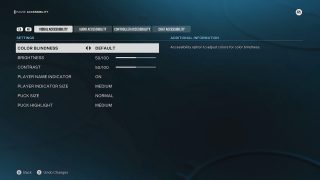
- Puck size can be adjusted for three presets (Authentic, Normal, and Large). A highlight can also be applied to make the puck contrast better against the ice with five sizes to choose from (extra small, small, medium or large) or be toggled off entirely.
- Player indicator size can be adjusted for Small, Medium, and Large, or turned Off altogether.
- Indicator toggles can be turned On/Off for the player indicator, goalie anticipation indicator, X-factor visuals to reduce visual distractions.
Visual Assists
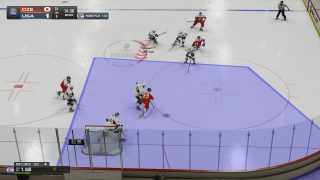
- Defensive Positioning is available and On by default. A blue region that represents the area you should be covering while the opposing team has the puck in your zone. A ring will appear around a specific player the coach wants you to cover. If you are out of the position a red arrow will appear to guide you toward your target. Visualizations turn green when you are in a good position.
- Offensive Positioning is available and On by default. An arrow will help you stay in the offensive position by pointing to where the coach would like you to be. Follow his suggestions to improve your Team Play grade.
Visual Effects & Display
- Contrast and Brightness can be customized at any point with separate sliders offering values from 0 to 100.
- Colorblind modes available for Protanopia, Deuteranopia, and Tritanopia as full-screen solutions.
- Auto Zoom toggle lets the game camera adjust itself to show the best possible camera angles.
Audio
Sound Settings
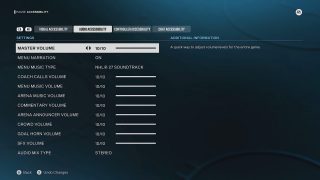
- Volume sliders can be separately adjusted for Master Volume, Coach Calls, Menu Music, Arena Announcer, Arena Music, Commentaries, Crowd, Goal Horn and SFX.
- Menu narration can be toggled On or Off.
Controls
Controller Presets
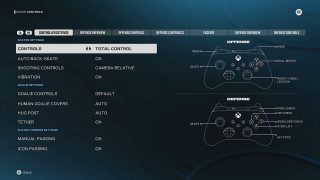
- Total Control preset uses both the right-stick for main actions and the face buttons for skill moves to have a much finer control of the actions you want to perform. All actions are available.
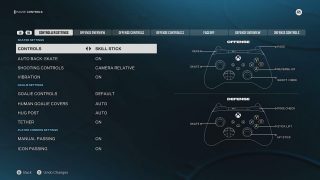
- Skill Stick focuses on using mainly the right stick to perform skill actions and shots. All actions are available.
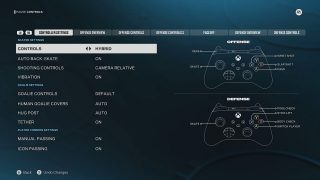
- Hybrid preset simplifies the controls by only requiring two buttons to be used. Only basic actions will be available when using this control scheme.
Control Settings
- Auto-back skate can be turned On to automatically turn to skate backwards, simplifying controls.
- Controller vibration can be turned On or Off at any point.
- Controller presets (listed above) can be changed at any point of the game.
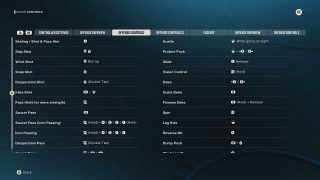
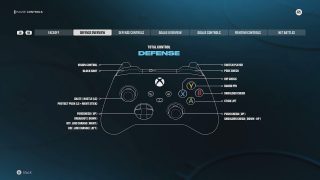
- Control reminders for basic and advanced moves can be reviewed in the menu.
Gameplay
Difficulty & Affordances
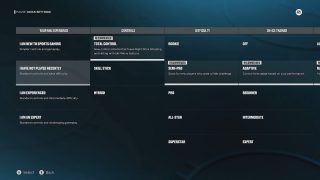
- Difficulty options include Rookie, Semi-Pro, Pro, All-Star, and Super Star. Rookie is for players who are new to the game, whereas Superstar provides the ultimate challenge for veterans of the NHL franchise.
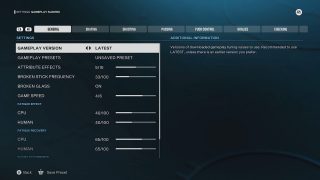
- CPU/Human Gameplay sliders adjust how CPU and Human controlled players operate in the game. Rule systems can be changed for Fatigue Effect, Fatigue Recovery, Injury Occurrence, Accuracy, Power, and more. All of these sliders are changeable across positions like skating, shooting, goalie, checking, and passing.
Gameplay Assists
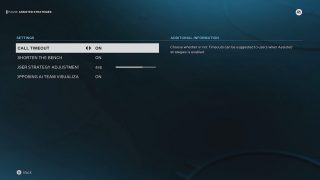
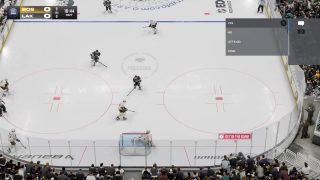
- Assisted Strategies can be turned On, where the game’s AI will suggest when to call timeouts or shorten the bench. Frequency of suggestions can be changed with a slider. “Opposing AI Team visualizations” allow for the game to show mid-game adjustments that CPU teams make.
- On-ice Trainer can be adjusted to show control hints, feedback hints, and other useful information that can aid in a successful gameplay experience.


Multiplayer Considerations
- Quick Chat includes predefined messages for online matches, which are also compatible with menu narration and read aloud if it is on.
- Speech-to-text will transcribe voice chat messages in the text chat. Text-to-Speech will read aloud the text chat messages. Note that for these features to work on Xbox, they must be turned On at a system level. PlayStation users will find this setting in the settings menu.